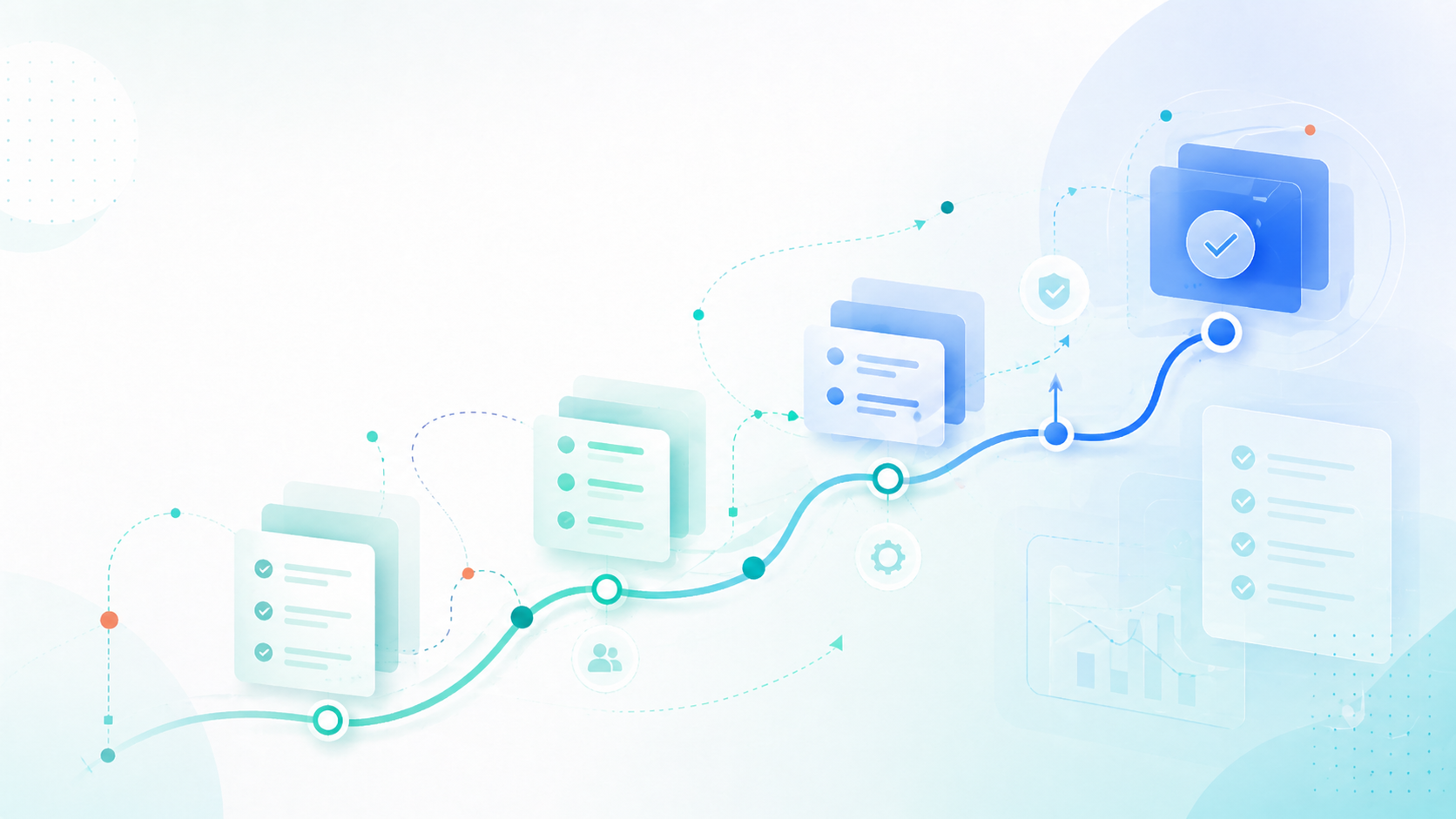
A safe helpdesk migration starts with scope, data cleanup, field mapping, target setup, a demo migration, a full migration, delta migration, cutover, and post-migration QA. The goal is not only to move old tickets. The goal is to preserve useful customer context while launching a better support workflow in the new helpdesk.
Sommaire
- What is helpdesk migration planning?
- Quick helpdesk migration checklist
- Étape 1: Define why you are migrating
- Étape 2: Audit your helpdesk data
- Étape 3: Decide what should not migrate
- Étape 4: Prepare the target helpdesk
- Étape 5: Map data carefully
- Étape 6: Prepare for technical limits
- Étape 7: Run a demo migration
- Étape 8: Plan delta migration and cutover
- Étape 9: Post-migration QA checklist
- Étape 10: Build a rollback plan
- Planning template
- Questions to ask your migration vendor
- FAQ
What is helpdesk migration planning?
Helpdesk migration planning is the process of preparing a support team, source platform, target platform, historical data, workflows, integrations, and go-live plan before moving support records into a new helpdesk.
A migration can include tickets, requesters, agents, organizations, comments, private notes, attachments, tags, custom fields, statuses, priorities, satisfaction ratings, knowledge base articles, categories, macros, SLA context, and audit history. Some objects can be transferred directly. Others need to be mapped, rebuilt, archived, or intentionally excluded.
The mistake many teams make is treating migration like a technical export/import job. In reality, it is a support operations project. If the data lands correctly but agents cannot work, reports break, notifications fire at the wrong time, or customers lose context, the migration still failed.
Preserve the customer history your team needs, avoid moving old operational clutter, and launch the new helpdesk with cleaner workflows than the old one.
Quick helpdesk migration checklist
Use this checklist before moving from one helpdesk to another. It works for common migrations such as Freshdesk to Zendesk, Zendesk to Freshdesk, Intercom to Zendesk, Help Scout to Freshdesk, or ITSM moves into Freshservice, ServiceNow, or Jira Service Management.
- Define the migration owner and decision makers.
- Document why you are migrating and what must improve.
- Audit tickets, users, organizations, comments, attachments, tags, fields, statuses, SLAs, and knowledge base content.
- Decide what should migrate, what should be archived, and what should be rebuilt manually.
- Prepare agents, groups, roles, brands, forms, fields, statuses, and permissions in the target helpdesk.
- Map source fields to target fields and define fallback rules for missing or invalid values.
- Check API limits, attachment limits, deleted users, private notes, inline images, dates, time zones, and ticket ID changes.
- Disable or control notifications, triggers, automations, and customer-facing emails during historical import.
- Run a demo migration with real examples and edge cases.
- Avis the demo migration with support, operations, and reporting owners.
- Schedule the full migration and define the delta migration window.
- Switch email, chat, web forms, help center links, and integrations during cutover.
- Validate counts, samples, reports, search, attachments, workflows, and customer-facing channels.
- Keep the source helpdesk available in read-only mode until sign-off.
Étape 1: Define why you are migrating
Teams migrate helpdesks for different reasons. Some want lower cost. Some need stronger AI, reporting, automation, or integrations. Others are consolidating after M&A, moving from a shared inbox, replacing a legacy on-premise tool, or standardizing support across regions.
The reason matters because it controls the migration scope. If the goal is simplicity, do not recreate every old field and automation. If the goal is enterprise scale, do not cut corners on permissions, auditability, or reporting data. If the goal is AI readiness, knowledge base cleanup may be as important as ticket transfer.
Common migration goals
- Reduce cost: move from an expensive platform or remove unnecessary add-ons.
- Scale support: support more agents, products, regions, or brands.
- Improve reporting: create cleaner data for support leadership and customer experience teams.
- Add IA et automatisation: prepare tickets, tags, fields, and knowledge base content for AI-assisted support.
- Improve integrations: connect support with CRM, ecommerce, billing, product, or IT systems.
- Consolidate tools: merge multiple helpdesks into one operating model.
Before planning the data move, write down what success means. “All tickets moved” is not enough. A better success definition might be: agents can find customer history, active tickets are routed correctly, reports match expected numbers, customers do not receive accidental notifications, and the support team can work only from the new platform after cutover.
Étape 2: Audit your current helpdesk data
A data audit tells you what exists before you decide what should move. This is where many migration problems are discovered: duplicate contacts, abandoned tags, custom fields nobody uses, inactive agents, old groups, missing requester emails, huge attachments, and outdated knowledge base articles.
| Data object | What to check | Migration risk |
|---|---|---|
| Tickets | Volume by status, date, group, channel, priority, and customer segment. | Large archives increase migration time and QA effort. |
| Contacts / users | Duplicates, missing emails, deleted users, merged records, language, time zone. | Tickets can map to the wrong requester or fail import. |
| Companies / organizations | Domains, account owners, hierarchy, custom fields, duplicate companies. | B2B context and reporting can break after migration. |
| Agents and groups | Active agents, former agents, teams, queues, roles, permissions. | Historical assignments may not map cleanly. |
| Comments and private notes | Public/private visibility, authorship, timestamps, long threads. | Private notes must not become public replies. |
| Attachments | File size, file type, inline images, unavailable legacy files. | Files can be skipped, broken, or moved to the wrong comment. |
| Custom fields | Field type, options, required state, usage, duplicates, old values. | Invalid values can block imports or create messy reports. |
| Tags | Duplicates, naming patterns, one-off automation tags, old campaign tags. | Moving every tag can pollute the new helpdesk. |
| Knowledge base | Categories, folders, articles, images, permissions, translations, redirects. | Broken help center content weakens self-service and AI. |
| Automation and SLAs | Triggers, macros, routing rules, business hours, SLA policies. | These usually need rebuilding, not blind copying. |
If you migrate years of unused fields, stale tags, and dead automations, the new helpdesk will feel old on day one.
Étape 3: Decide what should not migrate
A good helpdesk migration is selective. The question is not “can this data move?” The better question is “will this data help agents, customers, reporting, or compliance after go-live?”
Historical conversations often deserve strong preservation. Old operational clutter usually does not. Use migration as a chance to clean your support model instead of copying every old decision into a new system.
Data you may choose to archive instead of migrate
- Very old closed tickets that nobody needs in the new workspace.
- Duplicate contacts and companies.
- Abandoned tags from old campaigns or automations.
- Unused custom fields and inactive dropdown values.
- Outdated macros and canned replies.
- Old SLA rules that no longer match how the team works.
- Expired knowledge base articles and broken help center links.
- Large attachments that are not needed for support history.
If compliance requires retention, archiving can still satisfy retention without cluttering the live helpdesk. Keep the archive searchable, documented, and access-controlled.
Étape 4: Prepare the target helpdesk before migration
Do not import tickets into an empty target system and hope the structure sorts itself out. The target helpdesk should be ready before historical records arrive.
This is especially important when moving into platforms such as Zendesk, Freshdesk, Intercom, Help Scout, or Freshservice, because ticket records depend on users, organizations, groups, fields, forms, permissions, and channels.
Prepare these items first
- Agents, admins, roles, and permission groups.
- Teams, queues, groups, departments, or assignment structures.
- Organizations, companies, brands, and customer segments.
- Ticket forms, custom fields, custom statuses, priorities, and categories.
- Business hours, SLA policies, escalation rules, and routing logic.
- Email forwarding, chat widgets, web forms, help center URLs, and social/messaging channels.
- CRM, ecommerce, billing, product, identity, analytics, and collaboration integrations.
- Sandbox or staging environment if the target platform supports it.
If users, organizations, groups, and fields do not exist first, imported tickets can lose relationships or land with fallback values that are hard to clean later.
Étape 5: Map data carefully
Data mapping translates the old helpdesk model into the new one. This is where you decide how a Freshdesk custom field becomes a Zendesk field, how Intercom conversations become tickets, how deleted agents are represented, and where original ticket IDs should be stored.
| Source data | Target mapping decision | QA check |
|---|---|---|
| Original ticket ID | Store in a custom field or tag in the new helpdesk. | Search for old IDs after migration. |
| Requester | Map to target user/contact by email or unique ID. | Ouvrir sampled tickets and confirm customer identity. |
| Company / organization | Map by company ID, domain, or normalized name. | Validate B2B account history and reporting. |
| Assignee | Map active agents; define placeholder rules for former agents. | Check old assignments and comment authorship. |
| Status and priority | Normalize old statuses into the target lifecycle. | Confirm open, pending, solved, and closed records behave correctly. |
| Custom fields | Match field type and option values; define defaults. | Filter tickets by migrated custom fields. |
| Private notes | Preserve as internal comments only. | Confirm private content is not visible to customers. |
| Attachments | Attach to the right comment or ticket record. | Ouvrir files from sampled historical tickets. |
| Knowledge base articles | Map category, section, author, language, and permissions. | Ouvrir migrated articles, images, redirects, and internal links. |
Mapping should be documented in a shared workbook. Every exception should have an owner and a decision: migrate, transform, archive, or ignore.
Étape 6: Prepare for technical limits
Helpdesk migrations are constrained by APIs, platform rules, attachment limits, field requirements, and permission models. These details are boring, but they are exactly what can break a migration near go-live.
Common technical issues
- API rate limits: source or target APIs can slow down large migrations.
- Attachment limits: large files, missing files, or old file URLs may fail.
- Deleted agents: historical comments may reference users who no longer exist.
- Missing emails: some contacts cannot be imported as normal users without valid identifiers.
- Ticket ID changes: most target systems generate new native ticket IDs.
- Private notes: internal comments must stay internal.
- Inline images: pasted screenshots may need special handling.
- Dates and time zones: created, updated, solved, and closed timestamps need validation.
- Automations: triggers and notifications can fire if they are not disabled or controlled.
- Knowledge base structure: categories, folders, sections, translations, and redirects may not map one-to-one.
During historical import, disable or tightly control customer notifications, auto-replies, triggers, surveys, and workflow automations. Old tickets should not suddenly email customers.
Étape 7: Run a demo migration first
A demo migration is a small controlled transfer that proves the migration logic before the full run. It should use real data, not only perfect test records.
The best demo sample includes normal tickets and ugly tickets. Normal tickets prove the expected path works. Ugly tickets reveal edge cases early.
Use a golden sample
- 20–100 tickets across all major statuses and groups.
- Oldest tickets, newest tickets, and recently updated tickets.
- Tickets with many comments, private notes, CCs, and tags.
- Tickets with attachments, inline images, and long threads.
- Tickets from current and former agents.
- Tickets linked to organizations, companies, or account records.
- Tickets with custom fields, custom statuses, priorities, and due dates.
- Knowledge base articles with formatting, images, internal links, redirects, and translations.
After the demo, avis the sample in the target helpdesk with support leads, admins, reporting owners, and at least a few agents who know the data. A demo is only useful if real users inspect real examples.
Étape 8: Plan delta migration and cutover
The full migration and the final switch are not the same thing. A large historical migration may run while agents continue working in the old helpdesk. During that time, new tickets are created and old tickets are updated. Delta migration captures those changes before go-live.
Recommended cutover sequence
- Freeze major configuration changes in the old helpdesk.
- Prepare the target helpdesk and verify access.
- Run the full historical migration.
- Record the exact timestamp used as the delta boundary.
- Avis migration logs and fix critical errors.
- Run delta migration for new and updated records.
- Switch email forwarding, chat widgets, forms, help center links, and integrations.
- Create live test tickets in the target helpdesk.
- Validate triggers, SLAs, routing, assignments, notifications, and reports.
- Keep the old helpdesk in read-only or restricted mode until sign-off.
For high-volume support teams, cutover should be scheduled during lower traffic periods. For global teams, plan regional support coverage and communicate clearly with agents before the switch.
Étape 9: Post-migration QA checklist
Matching ticket counts is not enough. A migration can have the right count and still be wrong if comments are out of order, attachments are missing, private notes are public, or reports no longer match the business.
| QA area | What to validate | Owner |
|---|---|---|
| Ticket counts | Compare by status, group, priority, channel, and date range. | Support ops |
| Users and companies | Check requester identity, organization links, duplicates, and missing emails. | Support ops / CRM owner |
| Comments | Verify order, author, visibility, timestamps, and formatting. | Support leads |
| Attachments | Ouvrir files from sampled tickets and check inline images. | QA owner |
| Custom fields | Filter and report on migrated field values. | Admin / reporting owner |
| Tags | Confirm important tags migrated and junk tags were excluded. | Support ops |
| Knowledge base | Avis article body, images, authors, translations, permissions, and redirects. | Content owner |
| Search | Search by customer email, old ticket ID, tags, subject, and keywords. | Agents |
| Reports | Validate SLA, ticket volume, CSAT, backlog, and team dashboards. | Reporting owner |
| Live workflows | Test email, chat, forms, routing, triggers, macros, and SLAs. | Admin / support leads |
Ask agents to inspect known customer examples. They will often notice practical issues that automated validation misses.
Étape 10: Build a rollback plan
Rollback does not always mean deleting everything from the target helpdesk. In most support migrations, rollback means temporarily routing new support traffic back to the old helpdesk while the team investigates a blocker.
You should know who can approve rollback, how channels will be switched back, what happens to tickets created in the new helpdesk, and how the team will communicate the decision.
Rollback checklist
- Keep the source helpdesk available during validation.
- Document how to switch email, chat, and forms back to the old system.
- Keep a source ticket ID to target ticket ID mapping table.
- Record migration batch timestamps and delta windows.
- Define who approves rollback and who communicates to agents.
- Maintain a known-issues log for excluded data and accepted limitations.
- Avoid deleting source data immediately after migration.
Helpdesk migration planning template
Use this planning template before a full migration. It helps keep scope, owners, dates, and risks visible.
- Migration owner
- Name the person who approves mappings, scope, timeline, and go-live.
- Source platform
- Current helpdesk, version, plan, API access, and admin owner.
- Target platform
- New helpdesk, plan, sandbox/production setup, and admin owner.
- Data scope
- Tickets, users, organizations, comments, attachments, fields, tags, KB, macros, SLA context.
- Excluded data
- Old tickets, junk tags, unused fields, archived attachments, obsolete KB articles.
- Mapping owner
- Person responsible for custom fields, statuses, groups, tags, and fallback rules.
- Demo sample
- List ticket IDs and articles that must be included in the demo migration.
- Cutover window
- Migration date, freeze period, delta migration window, and go-live time.
- QA owner
- Person who approves counts, samples, reports, workflows, and live channels.
- Rollback owner
- Person who can decide whether to pause or route support back to the old platform.
Questions to ask your migration vendor
If you use an automated migration product or professional migration team, ask practical questions before signing off on the migration plan.
- Which objects can you migrate from our source to our target platform?
- Can we choose specific tickets for a custom demo migration?
- How do you handle attachments, inline images, private notes, deleted users, and custom fields?
- Can you preserve original ticket IDs in a searchable field?
- How are API limits and failed records handled?
- Can you run delta migration before cutover?
- What migration report or error log will we receive?
- What data is stored during migration and when is it deleted?
- Can we exclude old records, tags, attachments, or unused fields?
- What do we need to prepare in the target helpdesk before the full migration?
For related research, compare platforms directly in Freshdesk vs Zendesk, avis Freshdesk vs Zendesk decision factors, or read the AI helpdesk buyer guide if AI readiness is part of your migration reason.
FAQ: Helpdesk migration planning
What is helpdesk migration?
Helpdesk migration is the process of moving support data and operational context from one helpdesk platform to another. It can include tickets, contacts, companies, comments, attachments, agents, groups, tags, custom fields, statuses, knowledge base articles, and reporting data.
How do you plan a helpdesk migration?
Start by defining the migration goal, owner, scope, data inventory, mapping plan, target setup, demo migration, cutover window, delta migration, QA process, and rollback plan.
What data should be migrated to a new helpdesk?
Most teams migrate active and useful historical tickets, contacts, companies, comments, attachments, custom fields, tags, users, groups, and knowledge base content. Old clutter such as unused fields, stale tags, and outdated articles can often be archived instead.
How long does helpdesk migration take?
The timeline depends on ticket volume, attachment size, API limits, source and target platforms, custom fields, knowledge base scope, demo avis, and stakeholder approvals. Small migrations can be short, while complex enterprise moves need staged planning and QA.
What is a demo migration?
A demo migration is a small controlled transfer used to test mappings, field behavior, comments, attachments, users, organizations, and knowledge base content before the full migration.
What is delta migration?
Delta migration is an incremental transfer of records created or updated after the main historical migration started. It is usually run shortly before or during cutover.
Should closed tickets be migrated?
Closed tickets should be migrated if agents need historical customer context, reporting, compliance, or search. Very old or low-value closed tickets can sometimes be archived instead of moved into the live workspace.
How do you migrate attachments?
Attachments need to be downloaded from the source, checked for availability and size limits, uploaded to the target, and attached to the correct ticket or comment. Inline images may need separate validation.
How do you avoid notifying customers during migration?
Disable or control customer notifications, triggers, automations, surveys, and auto-replies during historical imports. Test live notifications only after cutover.
How do you test a helpdesk migration?
Test counts, requester data, organizations, comments, private notes, attachments, tags, custom fields, statuses, timestamps, knowledge base articles, search, reports, and live workflows.
What are the biggest helpdesk migration risks?
The biggest risks are incomplete data, broken mappings, missing attachments, public/private comment mistakes, accidental customer notifications, API limits, poor QA, and unclear cutover ownership.
Should automations be migrated or rebuilt?
Automations, triggers, SLAs, routing rules, and macros are often better rebuilt in the target helpdesk. They are platform-specific and should reflect the future workflow, not only the old configuration.